Advertiser Disclosure
We independently review everything we recommend. When you buy through our links, we may earn a commission.
How to Set Up a VPN on Your Router
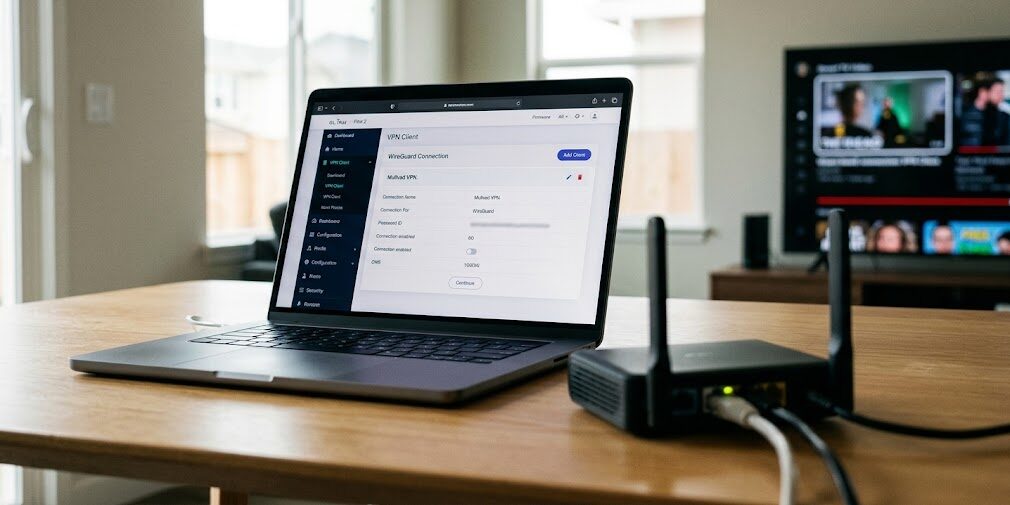
Picture this: you finally install a VPN on your laptop and phone, feel pretty good about it, and then your smart TV, game console, and that cheap robot vacuum keep chatting with the internet completely unprotected. Sound familiar? That gap is exactly why people set up a VPN on their router.
When you configure a VPN at the router level, every device on your Wi-Fi gets covered automatically. No apps, no logins, no “did I forget to turn it on?” moments. Your guests are covered too, which is a nice bonus.

Why Set Up a VPN on Your Router in the First Place?
Let’s get the quick answer out of the way. A router VPN encrypts the traffic of your entire home network before it leaves your house. Everything that connects to that router travels through the VPN tunnel.
Here’s what that fixes in real life:
- Devices that can’t run VPN apps. Smart TVs, streaming sticks, game consoles, and most smart-home gear have no VPN app at all.
- Connection limits. Many VPN providers cap simultaneous connections. A router counts as just one.
- Set-it-and-forget-it protection. Nobody in your household has to remember anything.
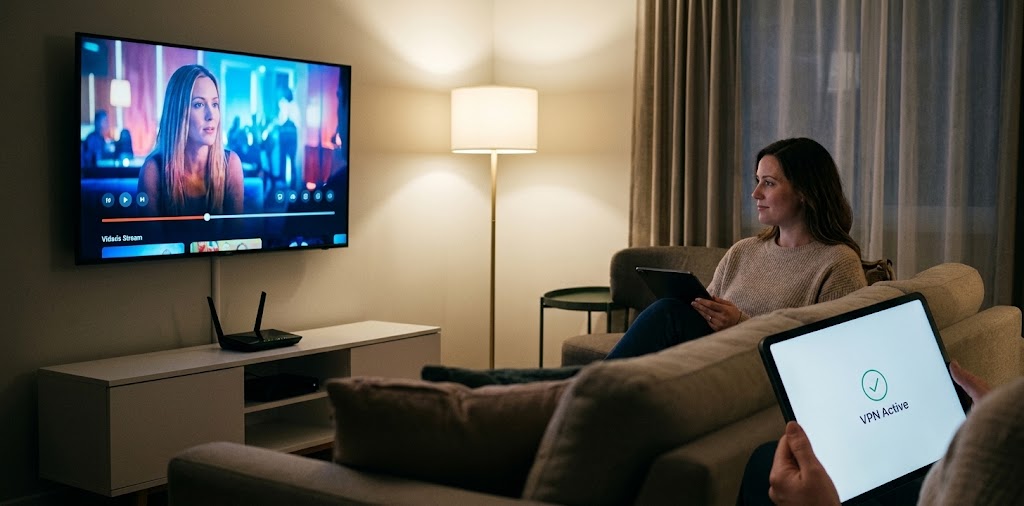
- Consistent location settings. Every device appears to browse from the same server location, which helps with streaming and region-locked services.
The trade-off is honest and simple. Everyone on the network shares one VPN connection, so you lose the flexibility of switching locations per device unless your router supports multiple profiles. Most households happily accept that deal.
Before You Start: 4 Things to Check
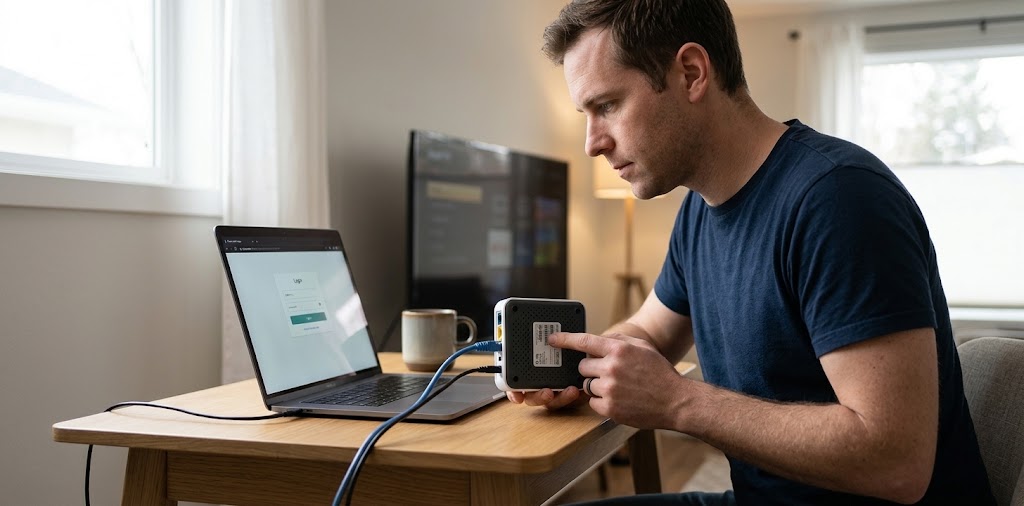
Skip this section, and you’ll probably hit a wall at step four. Spend five minutes here instead.
1. Confirm your router supports VPN client mode. Many routers can host a VPN server, but that’s a different job. You need the ability to connect out to a VPN provider as a client. Check your router’s admin panel for a “VPN Client” or “VPN” section. If your router came from your internet provider, it likely lacks this feature. (More on that below.)
2. Choose a VPN provider that offers router-friendly configs. Look for manual setup guides and downloadable WireGuard or OpenVPN configuration files. Not every popular provider makes this easy.
3. Find your router’s login details. The admin address is usually printed on a sticker underneath the router, often something like 192.168.1.1 or 192.168.0.1.
4. Note your current internet speed. Run a quick speed test now. You’ll compare it after setup, so you know exactly what the VPN costs you.
WireGuard vs. OpenVPN: Pick WireGuard
Most guides hedge on this question. We won’t.
WireGuard wins for nearly every home setup. It’s a modern protocol that landed in the Linux kernel back in 2020 with version 5.6; it uses far less code than OpenVPN, and it asks much less of your router’s processor. That last point matters most. Router CPUs are modest, and OpenVPN encryption can bottleneck your speeds hard on mid-range hardware. WireGuard usually delivers noticeably faster throughput on the same router.
Pick OpenVPN only if your router doesn’t support WireGuard at all, or your provider doesn’t offer it. It’s still secure and widely supported. It’s just slower on most home hardware.
How to Set Up a VPN on Your Router: 7 Steps
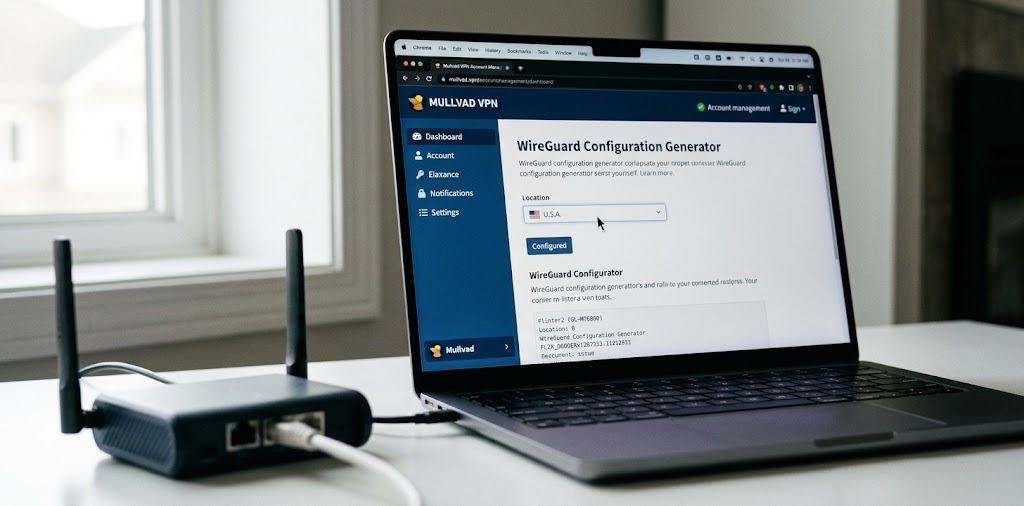
Menu names vary by brand, but the flow stays the same. We’ll use WireGuard as the example.
Step 1: Subscribe to a router-friendly VPN
Sign up with a provider that publishes configuration files and doesn’t hide the manual setup behind support tickets. Our pick for most people is NordVPN. Its configuration generator hands you a ready-to-use WireGuard file in a minute or two, and its flat monthly pricing keeps budgeting easy. If you’d rather stay with a provider you already use, Proton VPN also offers downloadable WireGuard configurations. Either works. Mullvad just makes this particular job simpler.
Step 2: Generate your configuration file
Log in to your provider’s account page and find the WireGuard or OpenVPN configuration generator. Choose your server location, then download the file. Pick a server close to you geographically. Distance directly affects speed, so a nearby city beats a far-off country unless you have a reason to go far.
Step 3: Log in to your router
Open a browser on a device connected to your Wi-Fi, type your router’s admin address, and sign in. If you’ve never changed the default password, this is a great time to do it. A router VPN protects your traffic, but a weak admin password undoes plenty of that good work.
Step 4: Find the VPN client section
Look for menu items such as “VPN,” “VPN Client,” or “WireGuard.” On ASUS routers, it sits under the VPN menu. On GL.iNet routers, it lives in the VPN section of the dashboard. If you see only a VPN server option and nothing for client connections, your router probably can’t do this job natively. Skip ahead to the router recommendations below.
Step 5: Import or enter your settings
Upload the configuration file you downloaded, or copy the key, endpoint, and address fields manually if your router asks for them. Give the profile a clear name like “NordVPN Frankfurt” so you can find it later. Save the settings.
Step 6: Turn it on and set your routing rules
Activate the connection. Many routers let you choose which devices use the VPN and which skip it. That’s handy. You might want your work laptop and TV inside the tunnel while your online banking device or a local-network printer stays outside. If your router offers a kill switch (sometimes called “block internet when VPN is down”), enable it. This stops traffic from leaking out unprotected if the tunnel drops.
Step 7: Test everything
Visit a “what is my IP” site from any device on your network. You should see the VPN server’s location, not your real one. Then run a DNS leak test, and rerun your speed test to compare against the number you wrote down earlier. A modest drop is normal. A massive one points to a protocol or server problem (see troubleshooting below).
The Best Routers for VPN Use
Not every router earns a spot on your shelf if VPN performance matters to you. We tested what matters in practice: how easy the client setup is, how much speed survives encryption, and how stable the connection stays.
Our winner: GL.iNet Flint 2 (GL-MT6000)
Think of this as the “just works” router for VPN people. GL.iNet builds its firmware with VPN clients front and center, so you’ll find WireGuard and OpenVPN options without digging through submenus. Import your Mullvad file, flip a switch, done. It also runs OpenWrt underneath, which gives tinkerers room to grow without forcing beginners to touch it. If you want the shortest path from “I bought a VPN” to “my whole house is protected,” this is the one to buy.
Budget route: flash a compatible router with OpenWrt
Own an older router that’s still decent? Check whether it appears on the OpenWrt supported-devices list. Flashing the open-source firmware can unlock VPN client features your stock firmware never had. Be warned, though: a mistake can brick the device, and mid-range chips will limit OpenVPN speeds. Do this only if you’re comfortable with a little risk and a lot of reading.
Our call: If you’re buying new, get the GL.iNet Flint 2. It beats the field on ease of setup, and it doesn’t make you choose between convenience and control.
Looking for more options? Check our roundup of the best routers for VPN use for a deeper side-by-side comparison.
Frequently Asked Questions
Can any router run a VPN?
No. Many routers support only VPN passthrough (letting a VPN device pass through) or a VPN server (letting you dial into your home). Running a VPN client for your whole network requires specific firmware support. ISP-provided routers rarely include it.
Will a router VPN slow down my internet?
Yes, a little. Encryption takes processing power, and your router’s CPU does the work. WireGuard minimizes the hit, while OpenVPN on a weak router can cut speeds sharply. A router with a stronger processor helps enormously. If speed matters to you, treat the CPU as a key spec, not an afterthought.
Is it better to use a VPN app or a router VPN?
Use both when it makes sense. The router covers devices that can’t run apps and gives you always-on protection at home. A phone or laptop app keeps you covered when you leave the house, because your router can’t follow you to a coffee shop.
Can I still access local devices like printers and smart speakers?
Usually, yes. Local traffic stays on your home network, and the VPN handles only internet-bound traffic. If something does break, use your router’s per-device routing to exclude it from the tunnel.
Does a router VPN work for streaming?
Often, yes, but results vary by service and server. Streaming platforms actively block known VPN servers, so you may have to try a few locations. Pick a provider known for rotating its servers.
How do I turn the VPN off temporarily?
Disable the VPN client toggle in your router’s admin panel, or use per-device rules to exempt specific gadgets. Most routers apply this within seconds.
Is a free VPN good enough for a router?
Skip it. Free VPNs tend to limit speeds and data, and some earn money in ways that undermine the privacy you’re trying to gain. Routers push a lot of traffic, so a free plan’s caps arrive fast. A reputable paid provider costs about as much as a fast-food lunch each month.
Will a router VPN hide everything I do online?
No tool does that. A VPN encrypts your connection and masks your IP address from the sites you visit, but logins, browser fingerprints, and account activity still identify you to the services you use. Think of it as one strong layer, not a magic cloak.
Troubleshooting: Fix the 4 Most Common Problems
The VPN connects, but nothing loads. This is usually a DNS problem. Set your router’s DNS to your VPN provider’s DNS servers, or use the DNS address in your configuration file.
Speeds feel painfully slow. Switch from OpenVPN to WireGuard, pick a closer server, and reboot the router. If speeds are still bad, your router’s processor is the bottleneck.
The connection keeps dropping. Try a different server. If the tunnel still falters, update your router’s firmware, since VPN client bugs get patched often.
Some websites refuse to load. A few sites block VPN traffic outright. Exclude that device from the tunnel or try another server location.
Stay Safe Without the Hassle
A VPN on your router isn’t just a geeky weekend project. It’s the most practical way to protect every device you own, including the ones that never had a chance at app-based protection. The recipe is short: pick a router that supports VPN clients, choose WireGuard, grab a configuration file from a provider like Mullvad, import it, and test.
If you’re shopping, the GL.iNet Flint 2 makes this process far less painful, and it earns our recommendation for most homes. If you already own a recent ASUS router, check for WireGuard support and set it up tonight. Your smart TV has been broadcasting its habits to the internet unprotected long enough.
Pick your router, block out half an hour, and get the whole house covered. Future you will be glad you did.