Advertiser Disclosure
We independently review everything we recommend. When you buy through our links, we may earn a commission.
The Best VPN for PS5 and PS4

Short answer: get NordVPN. It’s the stronger pick for most PS5 and PS4 owners, mainly because of faster results in the independent speed tests we found and a smoother track record with router setups. Surfshark is the better buy only if you’re watching every dollar or you’ve got a house full of devices. Either way, there’s a catch you need to know about before you spend anything: your PlayStation can’t run a VPN app, so the setup works differently from your laptop or phone.
This guide covers what a VPN does (and doesn’t do) on a PlayStation, how the three connection methods compare, how NordVPN and Surfshark stack up head to head, what you’ll really pay after the intro discount ends, and exact steps for each setup.
Which VPN should you buy for PS5 and PS4?
Buy NordVPN if the console is the main reason you’re shopping. It posted the fastest numbers in the independent speed test we found, and reviewers keep praising how steadily it behaves on routers, which is where console VPNs belong.
Buy Surfshark if you want the lowest bill or you’ve got a house full of phones, tablets, and laptops. It’s $27 cheaper over the first 27 months, and it has no device cap.

Feature | NordVPN | Surfshark |
|---|---|---|
Our pick for | Most PS5 and PS4 owners | Budget buyers and big households |
Cheapest plan, 2-year term | Basic, $3.49/month (plus 3 extra months) | Starter, $2.49/month (plus 3 extra months) |
Simultaneous devices | 10 | Unlimited |
Money-back guarantee | 30 days | 30 days |
Speed in tests (300Mbps baseline) | About 249Mbps, 83% retained | About 234Mbps, 78% retained |
Console-friendly setup | Router, PC sharing | Router, PC sharing, Smart DNS |
Can you really use a VPN on a PS5 or PS4?
Yes, but not the way you use one on a laptop. Neither console supports VPN apps. NordVPN’s own console support page lists two workarounds for PlayStation owners: put the VPN on your router, or share a VPN connection from a Windows PC. Smart DNS is a third, lighter option that some providers offer.
5 reasons to use a VPN on your PlayStation
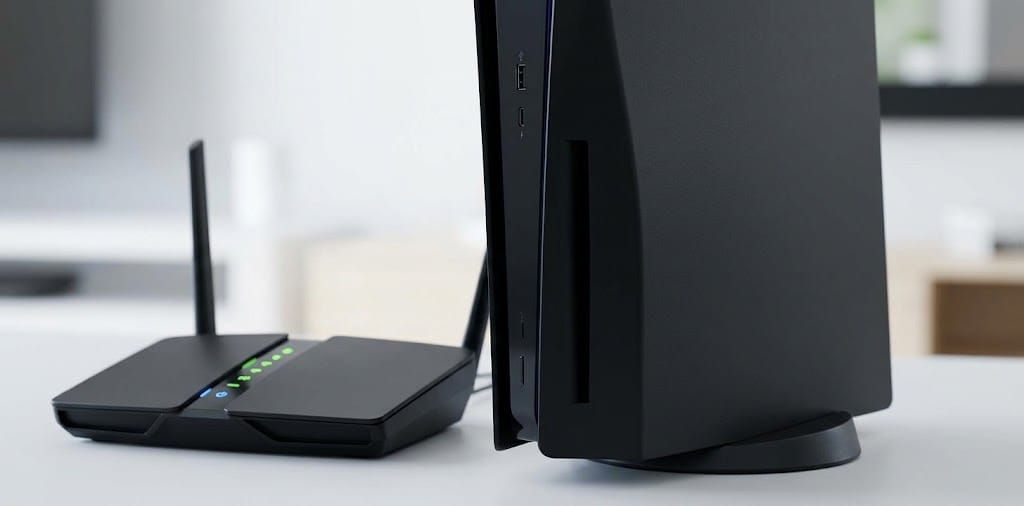
1. You can shut down DDoS attacks at the source
This is the benefit that matters most if you play online. Anyone who learns your IP address can aim a flood of traffic at it. A VPN swaps your real IP for the provider’s, so there’s nothing for an attacker to aim at.
Here’s the fine print that most guides gloss over: this only works when the whole connection goes through the VPN. A router setup or a shared PC connection hides your IP. Smart DNS doesn’t. It only redirects the lookups that reveal your location, and it doesn’t encrypt your traffic. An unencrypted Smart DNS connection still leaves you open to DDoS attacks. If attacks are your worry, skip Smart DNS and use a router.
2. You can unlock streaming libraries from other countries
Your PS5 is a decent streaming box, but it only shows your country’s catalog. Pick a server abroad, and you can see a different region’s library. Of the two providers, both advertise streaming access on their pricing and feature pages, and reviewers report success with the big services. This is the easy win, and it’s where Smart DNS earns its keep, because speed and encryption matter less when you’re just watching a show.
3. You can add privacy to everything on your network
A router-level VPN protects every device in the house, not just the console. That’s handy if roommates, kids, or guests share your Wi-Fi, because their traffic gets the same protection without anyone installing anything.
4. You may be able to change how your console connects
Some players use a VPN to deal with a strict NAT type, the setting that can break party chat and matchmaking. Results vary. One reviewer pushes Proton VPN specifically for a Moderate NAT feature, and we couldn’t confirm that NordVPN or Surfshark offer the same thing. So don’t buy either one expecting it to fix NAT. Check your NAT type before and after setup, and if it gets worse, switch servers or turn the VPN off for gaming.
5. You might get around a regional restriction (with a real risk attached)
Big games sometimes launch on different dates in different regions, and that’s the pitch for “play early with a VPN.” But using a VPN or Smart DNS to dodge regional restrictions can violate PlayStation’s terms of service, as at least one reviewer warns. We cover this in its own section below, because a banned account costs far more than a VPN subscription.
The myth: “A VPN will cut your lag”
Ignore this one. A VPN adds an extra stop between you and the game server, so ping usually goes up, not down. A VPN won’t boost console performance and will most likely raise ping. The only exception is a bad route from your internet provider, where a VPN path occasionally helps. If lower latency is your only goal, a wired connection and a better plan will do more for you than any VPN.
The 3 ways to connect a VPN to your console
Before we pick a winner, you need to know which method you’ll use, because it decides what you’re really buying.
| Method | Encrypts traffic? | Hides your IP? | Difficulty | Best for |
|---|---|---|---|---|
| VPN on your router | Yes | Yes | Medium to high | DDoS protection and whole-house coverage |
| Share from a Windows PC | Yes | Yes | Medium | Testing a VPN before touching your router |
| Smart DNS | No | No | Low | Streaming and region-locked apps |
The router method wins for anyone serious about security. Once it’s set up, every device on your network rides the VPN, and your PS5 never knows. The cost is effort: each router brand handles VPN clients differently, and some budget routers can’t do it at all. If you want a primer, our guide on how to set up a VPN on your router walks through the basics.
The PC method is a good trial run. You connect a Windows computer to the VPN, share that connection, and point your console at it. It works, but the PC has to stay on while you play.
Smart DNS takes about five minutes and suits streaming. It just isn’t a security tool.
NordVPN: the one we'd buy for a PS5 or PS4
Here’s what separates NordVPN from the pack: it’s the VPN you configure once and then stop thinking about. In testing against a 300Mbps connection, NordVPN averaged about 249Mbps, roughly 83% of the original speed. Something even gentler: a drop of only 5 to 10Mbps from a 180Mbps connection on nearby servers. Test setups differ, but both land in the same place: it doesn’t choke your bandwidth. Tom calls it the most consistent performer he tried on PS5 for both streaming and online play. For a console sitting behind a router, steadiness is the whole game. A lag spike in a ranked match costs you more than 15 spare megabits ever will. The honest downside is the setup. We rate NordVPN’s router installation as medium to high difficulty; there’s no dedicated router or custom firmware to make it painless, and you’ll be importing configuration files by hand, so block off an evening if you’ve never opened your router’s admin page. The 10-device limit is a non-issue for the console itself, because a router connection counts as a single device no matter how many gadgets hang off it. One more thing to know: NordVPN’s SmartPlay feature gets plenty of airtime, but NordVPN’s own page describes it as something that switches on automatically when you connect inside a NordVPN app, and a PS5 can’t run one. Treat it as a perk for your phone and laptop. As for which plan to buy, take the cheapest. Basic costs $3.49 a month on the 2-year term, and the pricier tiers add antivirus, a password manager, and cloud storage that a PlayStation will never use.
Surfshark: the budget pick that doesn't feel cheap
Money talks, and Surfshark talks loudest on price. The 2-year Starter plan runs $2.49 a month with three bonus months, totaling $67.23 for the first 27 months. That’s $27 less than NordVPN’s Basic plan over the same stretch, and it buys you something NordVPN can’t match: unlimited simultaneous devices. If your household has a PS5, a gaming laptop, four phones and a couple of tablets, nobody ever has to disconnect so someone else can log on. On speed, we measured about 234Mbps against a 300Mbps baseline, or 78% retention. That’s roughly 15Mbps behind NordVPN, a gap you won’t notice while streaming and might only feel if your base connection is slow. Surfshark also publishes router guides covering WireGuard, OpenVPN, and L2TP, and several reviewers say it supports Smart DNS for consoles, where you activate it in your account and type two DNS addresses into the PS5’s network settings. There’s a catch: Smart DNS is tied to the IP address you registered, so when your home IP changes, it stops working until you update it. One more limit to know: you can’t share a Surfshark connection from a Mac, so a Mac is a poor choice as your bridge to the console. Finally, Surfshark’s 4,500-plus servers across 100 countries (per its own pricing page) are plenty for a console.
How to set up a VPN on your PS5 or PS4
Method 1: Install the VPN on your router
This is our favorite route because it protects everything on your network and leaves your console untouched. It only works if your router supports VPN clients (OpenVPN, IKEv2, or WireGuard). Menus vary by brand, but the flow below uses an Asus router as the example.
- Log in to your router’s admin page.
- Open the VPN section, choose VPN Client, then add a profile.
- Select OpenVPN and enter your VPN login details.
- Import the configuration file your provider gives you.
- Activate the new profile.
- On your PS5, open Settings, then Network, then Set Up Internet Connection, and join your Wi-Fi network (or plug into the LAN port) as usual. Your console now rides the VPN.
For exact steps on your router model, use your provider’s guides. NordVPN’s console support page and Surfshark’s router articles both cover popular models.
Method 2: Use Smart DNS on the console
Smart DNS is the five-minute option. Use it for streaming apps and region-locked content, not for security, because it doesn’t encrypt anything and won’t stop a DDoS attack.
- Get your Smart DNS addresses from your provider’s account page (see the warning above if you’re unsure your plan includes it).
- On the PS5, go to Settings, then Network, then Settings, then Set Up Internet Connection.
- Choose Wi-Fi or LAN, then Custom Setup.
- Set IP Address to Automatic, then set DHCP Host Name to Do Not Specify.
- Under DNS Settings, choose Manual and enter the primary and secondary addresses.
- Set MTU to Automatic and Proxy Server to Do Not Use.
- Run the internet connection test.
If your home IP changes, update the registered address in your account, or the setup quietly stops working.
Method 3: Share a VPN connection from a Windows PC
Think of this as the test drive before you commit to a router. Connect your PC to the VPN using OpenVPN, turn on Windows’ Mobile hotspot, open your network adapter settings, and enable sharing on the VPN adapter so other devices can use the PC’s connection. Then join the hotspot from your PS5 like any Wi-Fi network. Two limits to remember: the PC must stay on whenever you play, and phones can’t do this job unless they’re rooted Android devices.
How to check that it’s working
Run two quick checks. First, open a “what is my IP” site on a device on the same network and confirm it shows the VPN’s location, not your home address. Second, on the PS5, run the connection test and look at your NAT type in the network status screen. If your NAT type got worse or your ping jumped, try another server or turn the VPN off for gaming sessions.
Fix it fast: common problems and quick solutions
Smart DNS suddenly stopped working. Your home IP probably changed. Log in to your provider’s account, update the registered address, then restart the console.
Streaming apps still show the wrong library. Confirm you entered both DNS addresses and restart the console. If the app caches your region, sign out and back in.
Your ping got worse. That’s normal with any VPN. Pick a nearby server to shrink the damage, and switch the VPN off for competitive sessions.
Party chat or matchmaking acts up. Check your NAT type. If it’s strict, try a different server or revert to your regular connection for the night.
Your router won’t accept the VPN profile. Some routers can’t run a VPN client at all. Check the specs, and use the Windows PC method until you can upgrade. If you’re shopping for a faster connection overall, our roundup of the fastest VPNs shows who else keeps speeds high.
PSN regions, accounts and the ban question
A VPN changes where your connection appears to come from, but it doesn’t change where your PlayStation account is registered, and it doesn’t change which payment methods the store accepts. Using a VPN or Smart DNS to get around regional restrictions can violate PlayStation’s terms of service. Read Sony’s current rules before you try anything involving purchases or region-locked content.
We’re not lawyers, and we’d treat the ban risk as real. If your main reason for buying a VPN is saving a few dollars on games from another region, ask yourself whether that’s worth putting your account and your whole game library at risk. For most players, it isn’t.
Should you use a free VPN on PS5 or PS4?

No. Free services rarely support the router and PC-sharing setups a console needs, so you may not be able to use one at all. Even when you can, you tend to get slow speeds, weaker protection and sometimes a business model built on selling your data. A premium plan costs a few dollars a month, and both providers here offer a 30-day money-back guarantee, so you can test either one with little risk.
Frequently asked questions
Can I install a VPN directly on my PS5 or PS4?
No. Neither console supports VPN apps. Your options are a VPN on your router, a connection shared from a Windows PC, or Smart DNS.
Which is better for PS5, NordVPN or Surfshark?
NordVPN, for most people. It was faster in the independent test we relied on, and reviewers consistently praise how it behaves on routers. Surfshark wins on price and on unlimited devices.
Do I need NordVPN’s more expensive plans for a console?
No. The Basic plan includes the VPN, which is all a console can use. The higher tiers add antivirus, a password manager, and cloud storage that a PlayStation can’t touch.
Will a VPN stop DDoS attacks on my PS5?
A full VPN connection through a router or a shared PC helps, because your real IP stays hidden. Smart DNS doesn’t encrypt your traffic or hide your IP from game servers, so it doesn’t offer the same protection.
Will a VPN lower my ping?
Rarely. It adds a stop between you and the game server, so ping typically rises. Choose a nearby server to keep the increase small.
Will a VPN fix a strict NAT type?
Not reliably. It can change how your console connects, for better or worse. We couldn’t confirm that NordVPN or Surfshark offers a dedicated NAT feature, so check your NAT type after you set things up.
Can I use the same VPN on my PS4 and PS5?
Yes. Both consoles connect the same way, through a router, a shared PC, or Smart DNS.
Can I get banned for using a VPN on PlayStation?
Using a VPN or Smart DNS to get around regional restrictions can violate PlayStation’s terms of service. Read Sony’s current terms before you try it.
Do both providers offer refunds?
Yes. Both list a 30-day money-back guarantee on their pricing pages.
The bottom line: buy NordVPN, unless your budget says otherwise
Let’s bring it back to that Friday night lobby. The player who gets knocked offline isn’t unlucky. They’re exposed. A VPN on your router closes that door, and between our two contenders, NordVPN is the better way to do it for most PS5 and PS4 owners. It posted the stronger speed results in the independent test we found, reviewers trust it on routers, and its device cap doesn’t matter when your console sits behind a single router connection. Choose the Basic plan on the 2-year term, set it up on your router, and write down the renewal date.
Surfshark is the right call if the bill is your main concern or you’ve got a crowd of devices at home. You’ll save about $27 over the first 27 months, and you’ll never count connections. Just confirm the renewal price and Smart DNS support in your account before you pay.
Either way, set your expectations correctly. A VPN protects your connection and opens up some content, but it won’t make your PS5 faster. Pick the one that fits your situation, take advantage of the 30-day guarantee, and get back to the game.