Advertiser Disclosure
We independently review everything we recommend. When you buy through our links, we may earn a commission.
How to Build a Back‑Pain‑Friendly Home Office Setup
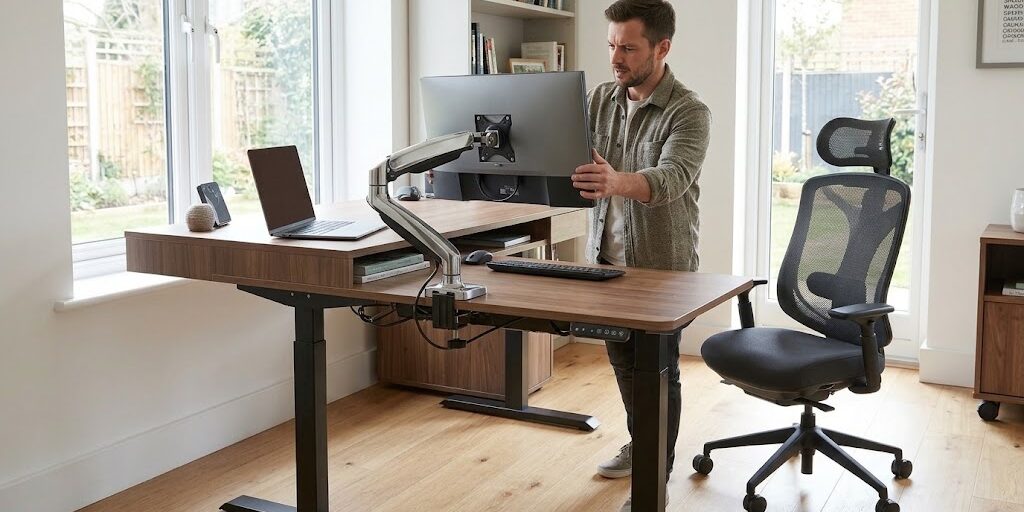
If your lower back starts aching by 2 p.m. and you’ve started blaming “getting older” instead of your desk setup, you’re not imagining things — and you’re definitely not alone. Remote and hybrid workers are dealing with a quietly massive health problem, and most of them don’t even realize their workstation is the culprit.
The good news? You don’t need a $3,000 renovation to fix this. You need the right pieces, in the right positions, used the right way. In this guide, our team breaks down exactly how to build a back-pain-friendly home office setup from the ground up — chair first, then desk height, monitor placement, keyboard positioning, lumbar support, lighting, and the movement habits that matter more than any single product you’ll buy. We’ll also answer the questions we hear most often from people trying to fix their setup on a budget, and we’ll point you toward specific product categories worth prioritizing first.

1. Start With the Chair — It's the Foundation of Everything Else
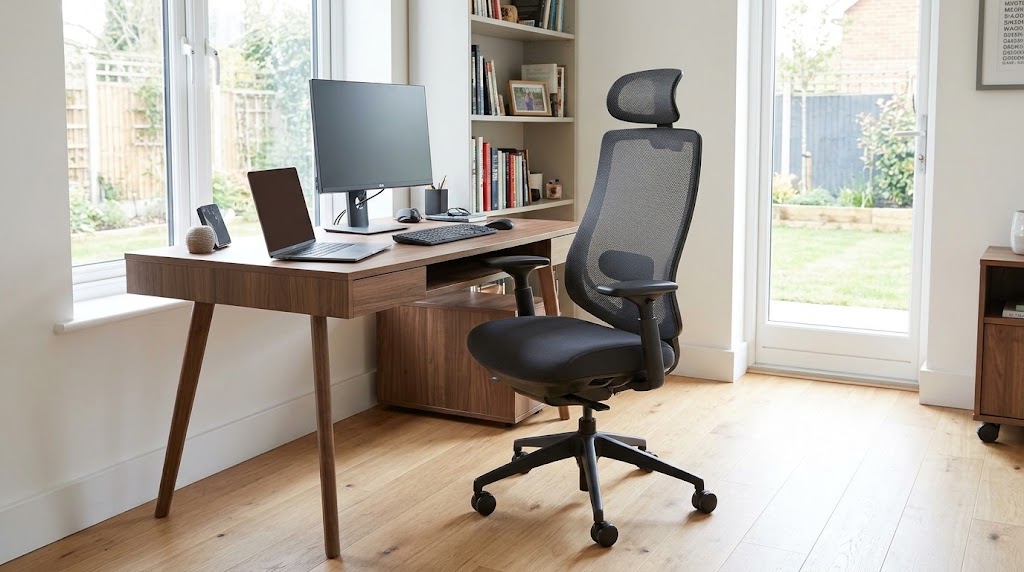
If you fix exactly one thing in your home office, make it the chair. Every ergonomics authority, including OSHA’s own computer workstation guidance, puts chair selection ahead of monitor height, keyboard position, or anything else, because your seat determines whether your spine holds a neutral curve or collapses into the slouch that creates lower back strain in the first place.
A back-pain-friendly chair needs a few non-negotiables:
- Adjustable lumbar support that sits in the small curve of your lower back, not somewhere above or below it
- Seat height adjustability so your knees land level with or slightly below your hips and your feet rest flat on the floor
- Seat depth that leaves roughly a fist-width gap between the front edge of the cushion and the back of your knees
- A backrest that reclines to somewhere between 100 and 110 degrees, which research consistently shows reduces lumbar disc pressure compared to sitting bolt upright
- A sturdy five-point base so the chair doesn’t tip or wobble as you shift positions throughout the day
If you’re shopping for a chair right now, we’ve already done the deep testing work for you. Our full breakdown of the best ergonomic office chairs for back pain under $500 compares six models across lumbar adjustability, recline range, and real-world comfort over an eight-hour workday, with a clear recommendation for which one actually earns its price tag. It’s worth reading before you buy, because the wrong “ergonomic” chair can cost you $400 and still leave you aching by lunchtime.
2. Get Your Desk Height Dialed In
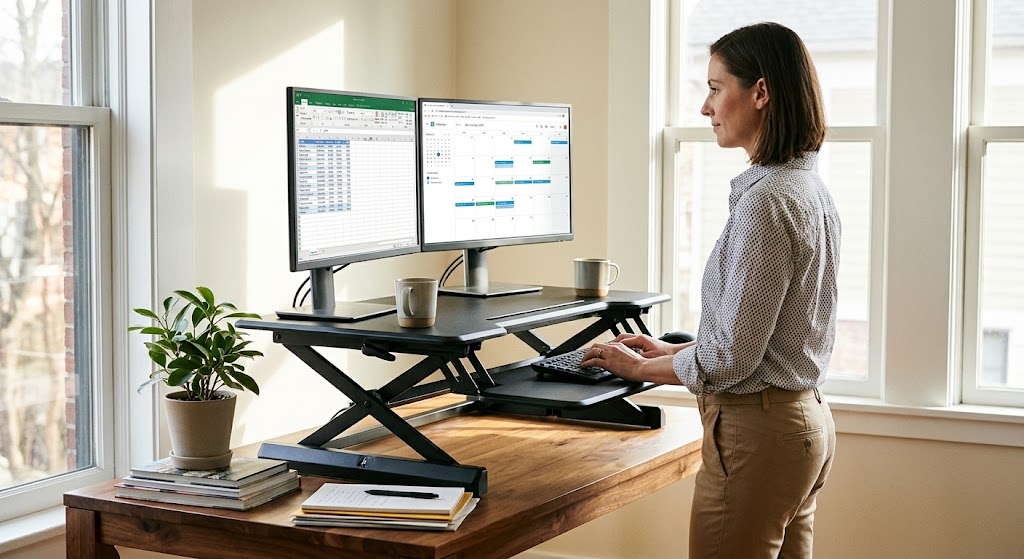
A great chair paired with the wrong desk height just creates a new problem. If your desk sits too high, your shoulders creep up toward your ears every time you type. Too low, and you hunch forward, rounding your lower back for hours at a stretch.
OSHA’s workstation guidance recommends a desk height of roughly 20 to 28 inches, which generally lines up with elbow height when you’re seated with your upper arms relaxed at your sides. Your forearms should rest at close to a 90-degree angle to your upper arms, with your wrists staying straight rather than bent up or down while you type.
If you’re working from a kitchen table or a desk that doesn’t adjust, don’t panic — you have workarounds:
- Raise your chair and add a footrest underneath to restore proper leg alignment
- Use a keyboard tray that sits lower than the desk surface itself
- Add desk risers under the legs if the surface is too low to begin with
For anyone serious about long-term back health, a sit-stand desk is genuinely worth the investment. Alternating between sitting and standing throughout the day reduces the sustained compressive load on your lumbar discs that builds up during long unbroken sitting stretches. You don’t need to stand all day — even 2 to 3 position changes per hour measurably reduce reported back and neck discomfort in workplace ergonomics studies.
3. Position Your Monitor to Protect Your Neck and Upper Back
Neck pain and upper back pain are so closely linked to lower back strain that fixing your monitor position often takes pressure off your entire spine, not just your neck. When your screen sits too low, you tip your head and shoulders forward to compensate, and that forward-head posture drags your whole upper body out of alignment.
The guidance here is remarkably consistent across OSHA, university ergonomics departments, and workplace safety organizations:
- Keep the top of your monitor at or just slightly below eye level
- Position the screen 20 to 28 inches from your eyes — roughly an arm’s length away
- Center your primary monitor directly in front of you, not off to one side
- If you run dual monitors, place the one you use most often dead center, with the secondary screen angled beside it
If you’re working off a laptop, which remains the single biggest ergonomic trap in home offices, raise it to eye level using a stand or even a stack of books, and pair it with an external keyboard and mouse. Looking down at a laptop screen for hours is one of the fastest routes to chronic neck and upper back pain, and it’s an easy fix once you know to watch for it.
4. Fix Your Keyboard and Mouse Position
Your arms and shoulders play a bigger role in back pain than most people assume. When your keyboard sits too far away or too high, you end up reaching and hunching to compensate, which rounds your upper back and drags your lower spine out of its natural position along with it.
Aim for these positions:
- Keep your keyboard and mouse at the same height, roughly level with your bent elbows
- Keep your mouse close enough that you’re not extending your arm to reach it — about 12 inches from your body is the standard guideline
- Let your wrists stay straight and neutral rather than bending upward or resting on a hard edge
- If your desk doesn’t adjust low enough, a keyboard tray solves this faster and cheaper than replacing the whole desk
5. Add Real Lumbar Support — Not Just a Decorative Cushion
Even a well-designed office chair sometimes needs a boost, especially if you’re petite, tall, or simply have a deeper lumbar curve than the chair was built for. A proper lumbar cushion fills the gap between your lower back and the backrest, keeping your spine’s natural S-curve intact instead of letting it flatten out as you fatigue through the afternoon.
Look for a cushion with memory foam or a contoured firm-foam core rather than loose fiberfill, which compresses flat within weeks and stops doing its job. Strap-on designs that stay fixed to the chair tend to outperform cushions that slide around the moment you shift your weight.
If your chair already includes adjustable built-in lumbar support, as several models in our roundup do, start there before spending extra on an add-on cushion. Stacking a cushion on top of a chair that already fits you well can actually push your spine out of alignment rather than helping it.
6. Don't Skip the Anti-Fatigue Mat (If You Stand) or Footrest (If You Sit)
Standing desk converters get an unexpected back-pain trap: standing flat on a hard floor for hours creates its own fatigue and compensatory slouching, especially through the lower back and hips. An anti-fatigue mat reduces that strain by giving your feet and legs a small amount of cushioned give, which keeps you shifting your weight naturally instead of locking into one rigid stance.
If you’re sitting most of the day instead, a footrest matters more than people expect. When your feet dangle even slightly above the floor, your thighs press into the front of the seat, cutting circulation and pulling your pelvis out of its neutral tilt. A simple footrest restores that 90-degree angle at your knees and takes pressure off your lower back almost immediately.
7. Get Your Lighting Right (Yes, It Actually Affects Your Back
This one surprises people, but poor lighting drives bad posture more than you’d think. When your screen is too dim, too bright, or catching glare from a window, you unconsciously lean in toward it to read more clearly, and that forward lean is exactly the posture that strains your lower back over a full workday.
A few quick fixes:
- Position your monitor perpendicular to windows, not facing them or with your back to them, to cut glare
- Add a desk lamp with adjustable brightness so your eyes aren’t straining to compensate for dim overhead lighting
- Use a matte screen protector if gla
8. Build In Movement — It Matters More Than Your Chair
Here’s the part that surprises most people: no chair, desk, or cushion can fully offset the damage of sitting still for hours on end. Sitting duration consistently ranks as the single strongest predictor of back pain across remote work studies, ahead of chair quality, desk height, or any other individual factor.
OSHA recommends a 10-minute break for every hour spent at a computer, and that guidance holds up well against the research. Set a recurring timer, stand up, walk to refill your water, or do a quick set of hip flexor stretches. These micro-breaks interrupt the sustained compressive load on your spinal discs that builds silently through an unbroken work session, and they cost you nothing but a few minutes of focus time.
If you work from a sit-stand desk, alternate positions every 30 to 60 minutes rather than picking one and sticking with it all day. Movement, not any single “correct” posture, is what actually protects your spine long term.f
9. Audit Your Desk Depth and Document Placement
If you reference printed documents, a second screen, or notes throughout the day, where you place them matters more than you’d guess. Twisting your neck and torso repeatedly to glance at a document propped off to one side creates asymmetric strain that compounds across a workday. Use an inline document holder positioned between your keyboard and monitor so you’re looking straight ahead instead of sideways.
Your desk should also be deep enough — OSHA recommends at least 30 inches — to let your monitor sit at the proper 20-plus-inch distance from your eyes without you running out of surface space for your keyboard and mouse in front of it.
10. Reassess Every Few Months, Not Just Once
Ergonomic setups aren’t a “set it and forget it” project. Your body changes, your furniture wears down, and habits drift back toward old patterns without you noticing. Revisit your setup every few months: recheck your seat height, confirm your monitor hasn’t slipped out of position, and make sure your lumbar cushion hasn’t flattened out. A five-minute check-in now beats weeks of unexplained back pain later.
11. Budget the Upgrade in the Right Order
If you can’t overhaul everything at once, prioritize in this order for the biggest pain reduction per dollar spent:
- Chair — the single highest-impact purchase, since it affects your spine for every hour you’re seated
- Monitor stand or arm — often under $40 and immediately corrects neck and upper back strain
- Lumbar cushion — a low-cost way to extend the life of a chair that’s almost right but not quite
- Footrest or anti-fatigue mat — inexpensive, and solves a specific, identifiable problem
- Standing desk converter or sit-stand desk — the biggest investment, but the one with the strongest long-term research behind it for reducing sustained sitting load
Common Mistakes That Undo a Good Setup
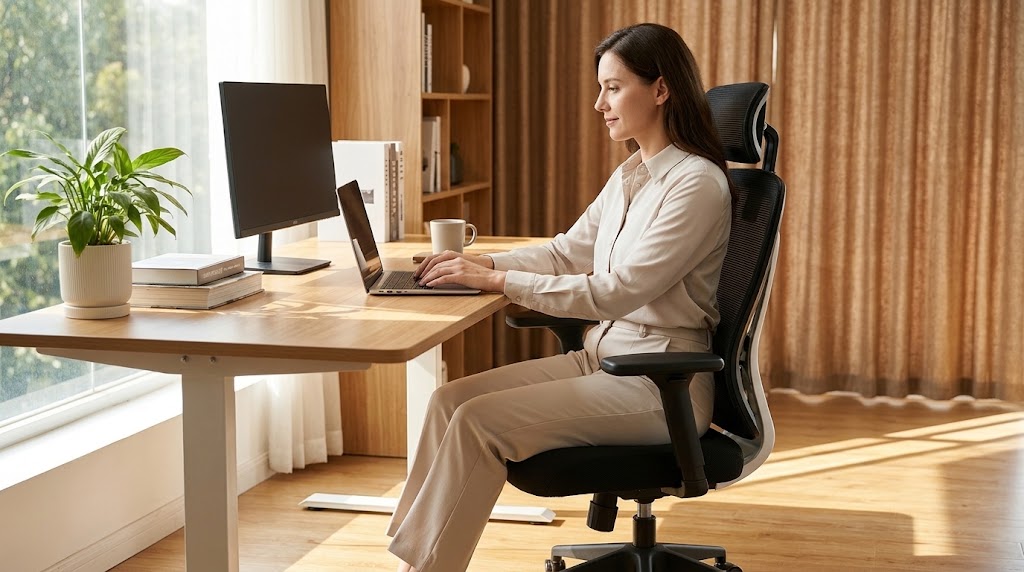
Even people who’ve bought the right gear sometimes sabotage themselves with small habits that quietly cancel out their investment. Watch for these:
Working from the couch “just for a bit.” That 20-minute laptop session on the sofa has a way of turning into two hours, and your spine doesn’t get a vote. The couch offers zero lumbar support and encourages the exact slumped posture your office setup is designed to prevent. If you need a change of scenery, bring a lumbar cushion with you rather than abandoning support altogether.
Leaning the chair back without engaging the backrest. A reclined angle only helps if your back actually makes contact with the backrest through the motion. Perching on the front edge of the seat while the chair sits reclined behind you defeats the purpose entirely and usually means your seat depth or height needs adjusting.
Treating the first setup as permanent. Bodies change, chairs break in, and desks get nudged out of position by everyday use. A setup that felt perfect in January can quietly drift by summer.
Ignoring pain until it’s chronic. Mild, intermittent discomfort is your body’s early warning system. Waiting until the pain is constant before adjusting your setup means you’re fixing a bigger problem than you needed to.
Buying an expensive chair and stopping there. A great chair paired with a monitor that’s too low or a desk that’s the wrong height still leaves you in a compromised posture. Ergonomics works as a system — every piece needs to support the others.
Frequently Asked Questions
How do I know if my home office setup is actually causing my back pain? If your pain is worse on workdays than weekends, eases up within an hour or two of standing or moving around, and concentrates in your lower back or between your shoulder blades, your setup is the most likely culprit. Chronic pain that doesn’t change with activity level or posture is worth discussing with a doctor rather than assuming it’s purely ergonomic.
What’s more important for back pain: the chair or the desk? The chair, by a wide margin. Your spine spends more hours in contact with your chair than with any other piece of furniture in your office, and a poorly fitted chair can undo even a perfectly positioned desk and monitor. If you can only afford one upgrade this year, make it the chair.
Is a standing desk actually better for back pain, or is that overstated? It’s genuinely backed by research, but only if you use it correctly. Standing all day creates its own fatigue and strain. The real benefit comes from alternating between sitting and standing every 30 to 60 minutes, which reduces the sustained spinal disc pressure that builds up during long unbroken sitting sessions.
Can a lumbar pillow fix a cheap, unsupportive chair? It can help, but it has limits. A lumbar cushion fills a gap in an otherwise decent chair. It can’t compensate for a seat that’s the wrong depth, a backrest that won’t recline, or a frame that’s simply too small or large for your body. If your chair fails on multiple fronts, the cushion is a band-aid, not a fix.
How often should I take breaks to prevent back pain at a desk? Follow the OSHA-aligned guideline of a 10-minute break for every hour of continuous computer work. Within that hour, even brief posture shifts, like standing to stretch for 30 seconds, make a measurable difference in reducing the cumulative strain that builds during sedentary stretches.
What’s the single cheapest fix if I can’t afford new furniture right now? Raise your monitor to eye level. It costs nothing if you use a stack of books, and it immediately reduces the forward head and neck lean that drags your entire upper spine out of alignment. Pair it with a 10-minute movement break every hour, and you’ll notice a difference within days.
The Bottom Line
Back pain from working at home isn’t an inevitable cost of remote work, even though the statistics make it feel that way. It’s a setup problem with a clear, research-backed fix: start with a chair that actually supports your spine, get your desk and monitor height correct, add targeted lumbar support where you need it, and build movement into every hour of your day. None of this requires a complete office overhaul. It requires getting the fundamentals right, in the right order, starting with the piece of furniture your spine touches the most.
If you haven’t addressed your chair yet, that’s genuinely where to start. Take a look at our full comparison of the best ergonomic office chairs for back pain under $500 to find the model that fits your body and your budget, and give your back the support it’s been asking for all along.